NOTE: Archived
messages more than 90 days old are available here!
Click here to
to this
ministry.
Instructions:
To
Listen to a
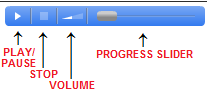
Message: Click on the "Play"
button
to
hear
the
message streamed right on the web page. The controls for the audio
player work as follows:
To
Download a Message: If you'd like to download an MP3 of
the message to listen to at a later time, right-click on "Download" and
select "Save Link As..." or "Save Target As..." from the popup menu.
To Listen on
an iPod: See instructions below in FAQ.
To Access the Scripture
Text: Just click on the scripture link in the Scripture Text
column. A new Window or Tab will open up with the NIV version of
the passage.
FAQ
(Frequently Asked Questions):
The audio player doesn't
show up in my browser. What should I do?
The
audio player is a small flash player that almost all browsers
use. If it doesn't show up, your browser may be set to not allow
flash objects. If that's the case, you may have a message come up
asking if it's ok to run flash objects, scripts, or ActiveX
controls. It would be ok to allow them for this page.
Another alternative would be to left-click on the "Download"
link. Your computer will probably open up and play the mp3 file
in a separate media player.
I got distracted and
missed some of the sermon. Is there a way to go back during
playback?
Sure!
Just use the "Progress Slider" to go back to the spot you want.
Or, you can click the "Stop" button and the press the "Play"
button. That will start the playback from the beginning
I'm
using the Firefox Internet browser and want to
download the file but there's no "Save Target As..." on the popup menu.
What should I do?
Different
browsers
use different terminology for the different functions. If
you're
using a browser other than the standard Internet Explorer, use whatever
command will save a file. For Firefox, the terminology is
"Save
Link As...". For Google Chrome, it will say "Save link as...".
I'd
like to listen to the messages on my iPod. How do I do it?
Follow
these instructions (courtesy of the Wells Family)
Right click and "Save Target As"
(Use the default file type for MPEG 3 audio).
Save to "My Music" (or a folder of
your choice).
Open iTunes.
Click on "File" and "Add File to
Library".
Find the file in "My
Music" (or the folder you
chose above).
Click Open.
The file is now in the ITunes play
list.
Once the iPod is connected to the
PC, you can drag the file to the iPod playlist for uploading.